
If you need to manage multiple Business Profile accounts, or you want to manage several profiles in a single account, you can do so with the right tools and management strategy.
In this blog, Curren Jardim, Account Specialist, will look into the steps for Google Business Profile management of multiple accounts and the best ways to keep your profiles in great shape with proper access controls and setup.
My Expert Opinion on Managing Multiple Google Business Profile Accounts
Google Business Profiles are among the most important assets for local businesses with physical locations. If you’re searching for “how to manage multiple Google My Business accounts,” Google My Business has changed to Google Business Profile as of 2021, so you’re in the right place.
Of course, as with many digital marketing tools, GBPs can be challenging to manage across locations and accounts, especially as your brand expands or if you operate a multi-location business with corporate and local operational levels.
You might ask: Can I create multiple Google Business Profiles through one account, or can multiple accounts manage a Google Business Profile? In short, the answer to both is “yes.” The key is establishing the various management roles and taking care to keep your profiles accurate, current, and compliant.
Today, around 7.8 million businesses in the U.S. alone manage at least one Google Business Profile, and people view these profiles about 1,420 times per month, 59% of which come from initial discovery searches instead of branded ones.
Stats like these show the importance of maintaining and managing these assets, particularly if you need to manage multiple Business Profile accounts. So, let’s get into steps for managing these profiles and what you can expect.
How to Manage Multiple Google Business Profiles From One Account
So, if you’re asking, “Can I create multiple Google Business Profiles through one account,” you absolutely can with Google Business Profile Manager, which makes it easy to organize profiles, assign access, and manage location information in a single dashboard.
To clarify how to manage multiple Business Profile accounts, consider how these different elements work:
- Google Account: These are accounts on Google that could own one or more Google Business Profiles.
- Business Profile: This is an individual listing for a physical business location, and it could include addresses for standalone business locations, shared offices, and other facilities where the business operates and provides its services or products.
- Business Group: This term refers to the shared management of Google Business Profiles for multiple locations, without the need for separate login credentials. Google recommends business groups for managing multiple businesses.
With these elements in mind, there are three main situations you might encounter with Google Business Profiles: One brand creates a Business Profile for each of its locations, franchisees might manage multiple franchise locations, and agencies could manage multiple GMB accounts for unrelated clients.
To learn how to set up a single or multifamily Google Business Profile, check out Ignite Visibility’s Google Business Profile guide.
Audit Existing Profiles Before Adding or Moving Locations
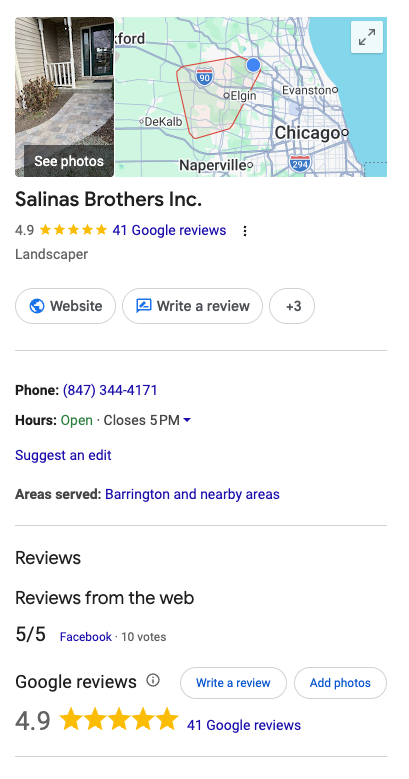
Before you add or move any locations with Google Business Profiles, conduct an audit of your current profiles and accounts.
Start by building a location inventory for each Business Profile as the foundation for safe consolidation, including:
- Internal location ID
- Profile URL
- Business name
- Address or service area
- Primary owner
- Other users
- Verification status
- Website URL
- Unresolved issues affecting profiles or accounts
In addition, perform a search on Google Maps for existing listings before creating new profiles. Flag any duplicates, inaccessible profiles, closed branches, or profiles controlled by former agencies or employees to resolve these issues at a later point.
Remember eligibility for multifamily Google Business Profiles: While separate locations can have separate profiles for each, you won’t necessarily justify another listing if you simply expand your service area to another city; a physical component is always needed.
For example, a home service company might have a genuine separately staffed location where it operates, which would warrant a Google Business Profile. If that company instead creates an unsupported virtual office or service area listing for another city, it may not be eligible for a GBP.
Meanwhile, healthcare practitioners can have separate organization and practitioner profiles, but only if the latter operates in a public-facing capacity and patients can reach them at the verified physical location during listed business hours. Practitioners can also only have one profile connected to their primary office location.
For more details on how to maintain compliance with Google’s GBP requirements, review Google’s business representation guidelines.
Recover Access to Profiles Someone Else Controls
If someone else currently owns a Google Business Profile, take these basic steps to claim it for a storefront or hybrid business:
- Find the existing business on Google.
- Select Request Access if the business exists.
- Submit your ownership request.
- Monitor the confirmation email and respond as quickly as possible.
After submitting your request, the current owner has three days to respond. If the owner doesn’t respond, you may be able to submit a claim/verification, but automatic ownership is never a guarantee.
Also, service area-based businesses typically use Google’s support route for ownership requests.
Let’s look at an example: A franchise location whose former marketing agency still controls their listing, as some agencies might manage multiple Business Profile accounts without remembering to relinquish ownership once a contract ends. Instead of creating a replacement profile, that franchisee should request access to the existing profile from the agency via Google.
Organize Locations Into the Right Business Groups
If you need to manage multiple Business Profile accounts and locations with two or more business groups on a single dashboard, take these steps:
- Log in to Business Profile Manager.
- Select Create Group.
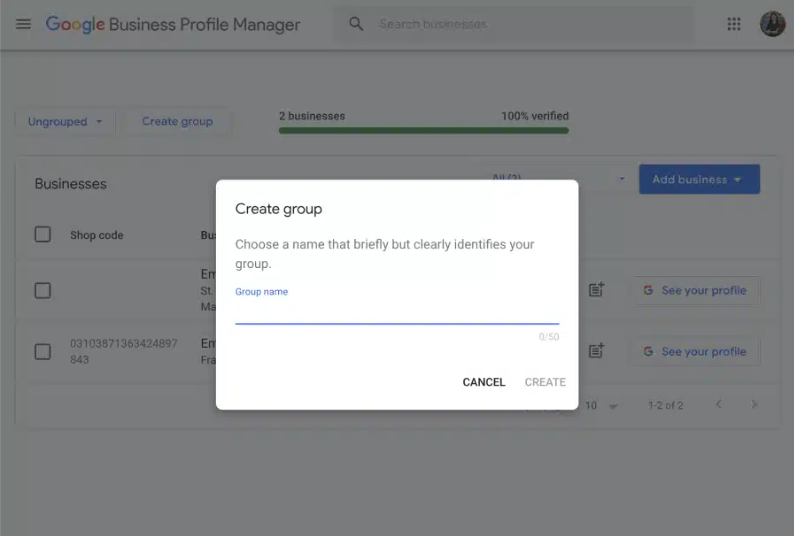
- Name the group.
- Choose Create.
For existing profiles, take these steps:
- Select your designated locations.
- Choose Actions.
- Select Transfer businesses.
- Choose the destination group.
As of 2026, Google provides the Create group option for users with two or more profiles.
When grouping, do so by business or brand, and use separate groups if each has specific access boundaries. If you use separate groups, each group will need its own spreadsheet import.
However, there is some risk involved when creating business groups, as users can access both current and future profiles added to that group. This makes it necessary to give local staff profile-level access exclusively when you don’t need to provide them with network-wide access.
Note: Organization accounts are different from business groups, with one organization account responsible for managing a specific agency domain, with business groups falling under that overarching account as a subset of multiple grouped locations.
Assign Ownership and Permissions Across Corporate, Local Teams, and Agencies
Here is an overview of the different roles and their responsibilities:
- Primary Owner: This is the main owner of the organization account and is responsible for signing off on all necessary changes and urgent issues.
- Backup Owner: If the primary owner is unavailable to take on authority, the backup owner will make decisions on their behalf to prevent delays.
- Central Marketing Manager: At this level, the marketing manager will execute corporate-wide listing deployments, publish brand posts, and make other updates affecting all connected business profiles.
- Local Operator: Franchisees and local staff have the authority to implement changes to their corresponding locations’ profiles, including business hours, images, and other localized business info.
- Agency: Does not have the authority to approve changes but can make strategic recommendations for continual optimization, which the primary or backup owner can approve and marketing managers or operators can implement.
Always keep primary ownership under the control of the authorized business. In doing so, franchises should document the agreed ownership model instead of assuming that corporate owns each profile.
Additionally, understand that profile-level operators control user access, while marketing managers can handle routine edits, posts, and reviews.
To manage the hierarchy effectively, be sure to:
- Send out individual invitations for access.
- Enable two-step verification.
- Provide backup access to designated backup owners.
- Create an employee/vendor offboarding checklist instead of shared passwords.
It’s also important to remember that there is a seven-day restriction on certain actions for newly added owners and managers, including the ability to transfer ownership, so plan any impending handovers accordingly.
Verify Locations Without Confusing Bulk Management With Bulk Verification
Bulk management and bulk verification are considerably different from each other: Bulk management refers to the organization and management of multiple Google Business Profile accounts or profiles, while bulk verification is a one-time trust check that Google performs to authorize accounts to publish and manage multiple locations; not all businesses will qualify for bulk verification.
To be eligible for bulk verification, you must have 10 or more eligible locations for the same business, which means that unrelated agency clients cannot simply combine locations across businesses to reach the threshold.
Also, service-area businesses are entirely ineligible for bulk verification, and profiles will be ineligible if they are duplicates, suspended, or disabled.
To prepare for bulk verification, perform checks for:
- Accurate location information
- Chain inventory
- Errors that prevent eligibility
Next, if available, go into Business Profile Manager and take these steps:
- Choose Verifications.
- Click on Chain.
- Select Start.
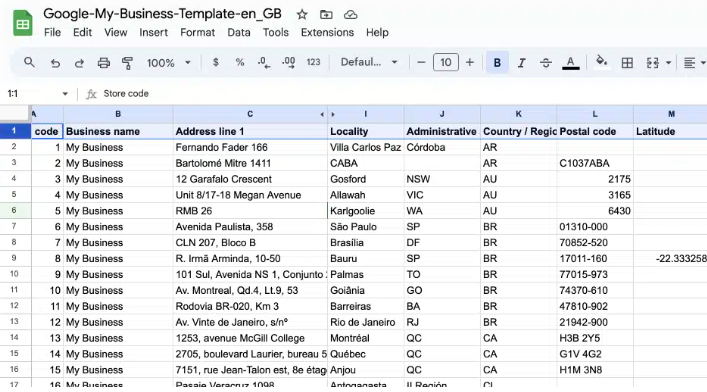
When uploading a spreadsheet with multiple locations, remember that this won’t automatically submit a verification request. Bulk verification also does not guarantee that Google won’t request additional location-level evidence or video footage for proof of location.
Update Multiple Locations Safely With Bulk Uploads
You can use bulk uploads to update several locations with accurate data without compromising your profiles.
Do the following to use bulk uploads the right way:
- Download current data from Business Profile Manager.
- Preserve a backup copy.
- Edit all intended fields.
- Upload the edited data.
- Preview affected locations before submitting.
- Apply the edits.
- Check live results and errors, resolving any issues as they arise.
When adding stable location identifiers, you can use store codes, in which case you should preserve leading zeros in Excel, e.g., adding an apostrophe before “01281746382” will keep that first zero intact. Otherwise, mismatched codes might automatically create new listings.
When making any targeted updates, include the store code column and only the fields you want to change instead of uploading an old master file that might overwrite valid local updates.
For instance, you might want to update only the holiday hours for 25 participating stores while leaving five exceptions unchanged. The spreadsheet uploaded for editing would only include a column for each of the 25 locations’ store codes and another with the changed business hours.
Remember, a successful upload doesn’t translate into confirmed publication. Review all “New,” “Updates,” and “Errors” categories before accepting any changes.
Note About Hotels: You are unable to update hotel attributes via spreadsheet uploads.
Standardize Brand Details Without Erasing Local Differences
Franchises and multi-location brands managing multiple profiles may need to change corporate-wide branding while maintaining local integrity. In these cases, brands would modify centrally governed fields while leaving locally maintained fields intact.
To facilitate these changes, standardize naming rules and category selection principles, validating individual location details like:
- Addresses
- Phone numbers
- Business hours
- Services
- Attributes
- Destination URLs
Always use real-world business names in your profiles, avoiding adding city names or keywords explicitly to boost rankings.
Consider this example: A restaurant group features shared branding across locations and wants to change its name, but each location will still retain its specific menus, holiday hours, accessibility features, and ordering links.
It’s best to have one approved location database with a named data owner and change log to streamline the process. Then you can reconcile that data with each location’s website and other listings.
Before making changes live, conduct a pre-publication check for:
- Correct location
- Accurate offers/services
- Working local links
- Local approval
Monitor Suggested Edits Before Incorrect Changes Go Live
Google users may make user-suggested edits to certain business details like hours and location. Upon notification, businesses have four days to accept or reject these edits, after which period Google may publish unanswered suggestions if other public information supports them.
This four-day window doesn’t function as a processing time for your own edits, and not all Google updates will need advance approval.
Operational Recommendation: To monitor edits, perform daily notification checks, assign a backup reviewer to look at edits, and set up an escalation queue prioritizing phone numbers, addresses, closures, hours, and website changes.
Remember that repeated corrections require checking source information, as outdated location pages or listings can support incorrect suggested changes in some instances.
Log any issues you might identify, such as:
- Location
- Disputed field
- Evidence
- Assigned owner
- Deadline
- Resolution
Schedule Posts and Manage Reviews Across Locations
Google Posts and reviews are helpful in keeping people engaged while refreshing your Business Profiles.
In 2025, Google introduced native post scheduling and multi-profile publishing.
To schedule a Google Post, go to Posts in Business Profile Manager, select Add post, and click on Schedule this post. You can then select multiple profiles for multi-location distribution.
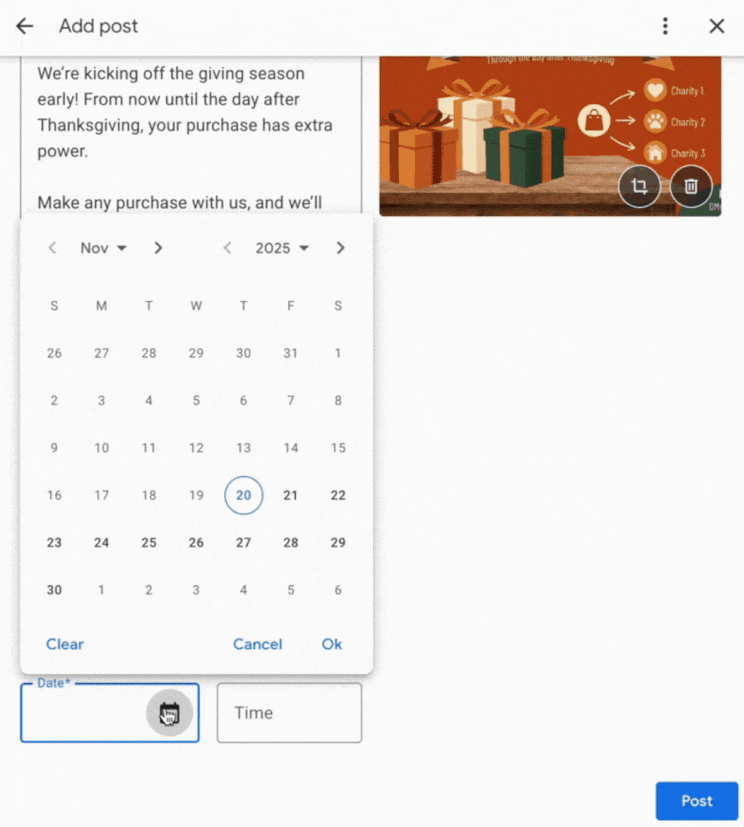
Google currently allows businesses to make recurring posts. If you want to make recurring posts, make sure you recheck dates, terms, and availability before repeating offers.
When it comes to review monitoring and response, use this workflow:
- Set up location-specific review request links to send to customers.
- Establish assigned responders.
- Set up escalation for sensitive complaints for human review.
When requesting reviews, never provide incentives or request positive reviews; Google strictly prohibits these types of engagement.
If you need some assistance with review management, Rallio’s review management solution can simplify this process and help develop AI-assisted responses. However, it’s always crucial to implement human review before submitting a response, especially if a review features a sensitive complaint that AI might not respond to appropriately.
Handle Suspensions, Ownership Changes, and Closed Locations
When dealing with these issues, take the following actions:
| Issue | Action |
| Duplicates | Consolidate locations into a single profile, keeping the one with the most accurate information. |
| Re-verification | Check for re-verification alerts or notifications in Business Profile Manager and follow the prompts that Google provides. |
| Suspension | Identify the cited issue in Business Profile Manager, correct inaccurate or noncompliant information, prepare supporting documentation, and follow the appropriate appeal route. |
| Relocation | Indicate the new address for each affected profile. |
| Permanent Closure | Change the public operating status to “Permanently Closed” and remove the profile from the user’s account, but keep in mind that account removal doesn’t remove the business from Maps. |
| Franchise Ownership Changes | Transfer the existing profile appropriately to maintain its information and reviews. |
When appealing a suspension, Google requires account owners to submit supporting evidence within 60 minutes of submitting the appeal, so prepare all documents beforehand. Also, avoid creating replacement profiles while an appeal is pending.
Measure Performance by Location, Not Just Across the Brand
You’ll want insight into how each location is performing, making it important to download each location’s performance data.
You can do so by:
- Logging into Business Profile Manager.
- Selecting the specific profile.
- Navigating to Performance.
- Choosing the specific performance time frame or date range.
- Clicking Download Report to export metrics into a CSV or another spreadsheet format.
Track all available metrics like website clicks, call button clicks, direction requests, and bookings based on your goals. Additionally, look for operational measures like unresolved edits, verification issues, and review response times.
Note: GBP “calls” only measure call button clicks, not qualified leads or answered calls, and direction requests don’t count as in-store visits.
Also, maintain consistent UTM tagging on location links to track landing pages connected to your GBPs, and connect website conversions to location IDs in analytics and CRM reporting.
Compare similar locations and each location’s specific baseline to get a better picture of performance changes. In addition, separate new openings and closures to keep network growth from concealing declining performance for existing locations.
For example, you may see total clicks increase while multiple established locations lose bookings. In this instance, you might look for bottlenecks that keep people from moving down the funnel, such as irrelevant landing pages or mismatched information like services listed on profiles vs. the website.
Choose the Right Level of Management Support
The type of management support you use will depend on the circumstances:
- Native Google tools for manageable workflows
- Software for monitoring, approvals, reviews, and reporting when these needs exceed your team’s capacity
- Agency support for resolving ownership issues, completing ongoing executiion, and optimizing for local SEO when tasks require specialists
Evaluate tools based on:
- Supported actions
- Location-level permissions
- Audit logs
- Failed update alerts
- Data exports
- Account handover capabilities
Not all platforms will support every Google feature, either.
When looking for the right support, consider Ignite Visibility’s multi-location SEO services, which combine GBP management, location pages, listing consistency, and location-level reporting.
To get the most from your profiles, audit ownership, assign an accountable person to each profile, and prioritize accuracy issues with the highest impact.
Work With Rallio and Ignite Visibility to Manage Multiple GBPs
If you need to manage multiple Business Profile accounts or profiles, Rallio and Ignite Visibility have the capabilities to help with every aspect of management.
Our platform and services can help you identify gaps across your location network, with Rallio equipping you with a fully capable management tool, while Ignite Visibility offers GBP development and optimization to help with local marketing.

Curren is an Account Specialist who has been working at Rallio | Powered by Ignite Visibility for the past two years. He has seven years of experience in the industry and is a graduate of The Ohio State University with a degree in Strategic Communications.
Curren partners closely with brands to craft content, campaigns, and strategies that showcase their unique voice while building authentic relationships with their communities. Passionate about maximizing brand impact through social media, Curren transforms ideas into campaigns that inspire engagement, spark conversation, and strengthen brand presence across digital platforms.