Creating eye-catching visuals is a huge part of social media success, and for many teams, Canva is where that creative process starts. With Rallio’s new Canva integration, it’s easier than ever to move your designs between platforms and keep your content workflow running smoothly.
This first phase focuses on a simple yet powerful goal: making it effortless to move Canva assets into Rallio and Rallio assets back into Canva.
What This Integration Does and Why It Matters
The core objective of the Canva integration is straightforward:
Connect your design workflow with your social media workflow.
With this integration, you can:
- Import Canva designs directly into your Rallio Media Library
- Export images from Rallio into Canva for easy editing or repurposing
- Keep your assets accessible across both platforms without extra downloads or uploads
It’s a foundational step toward a more seamless, less fragmented content process.
Hub and Location-Based Connections
Every Rallio Hub and location can connect to its own Canva account.
That means:
- Franchises and multi-location brands can manage assets independently
- Local teams stay in control of their designs
- No shared logins or cross-location confusion
Each connection is scoped to the Hub or location level, keeping everything clean and organized.
How It Works
Getting started only takes a few clicks.
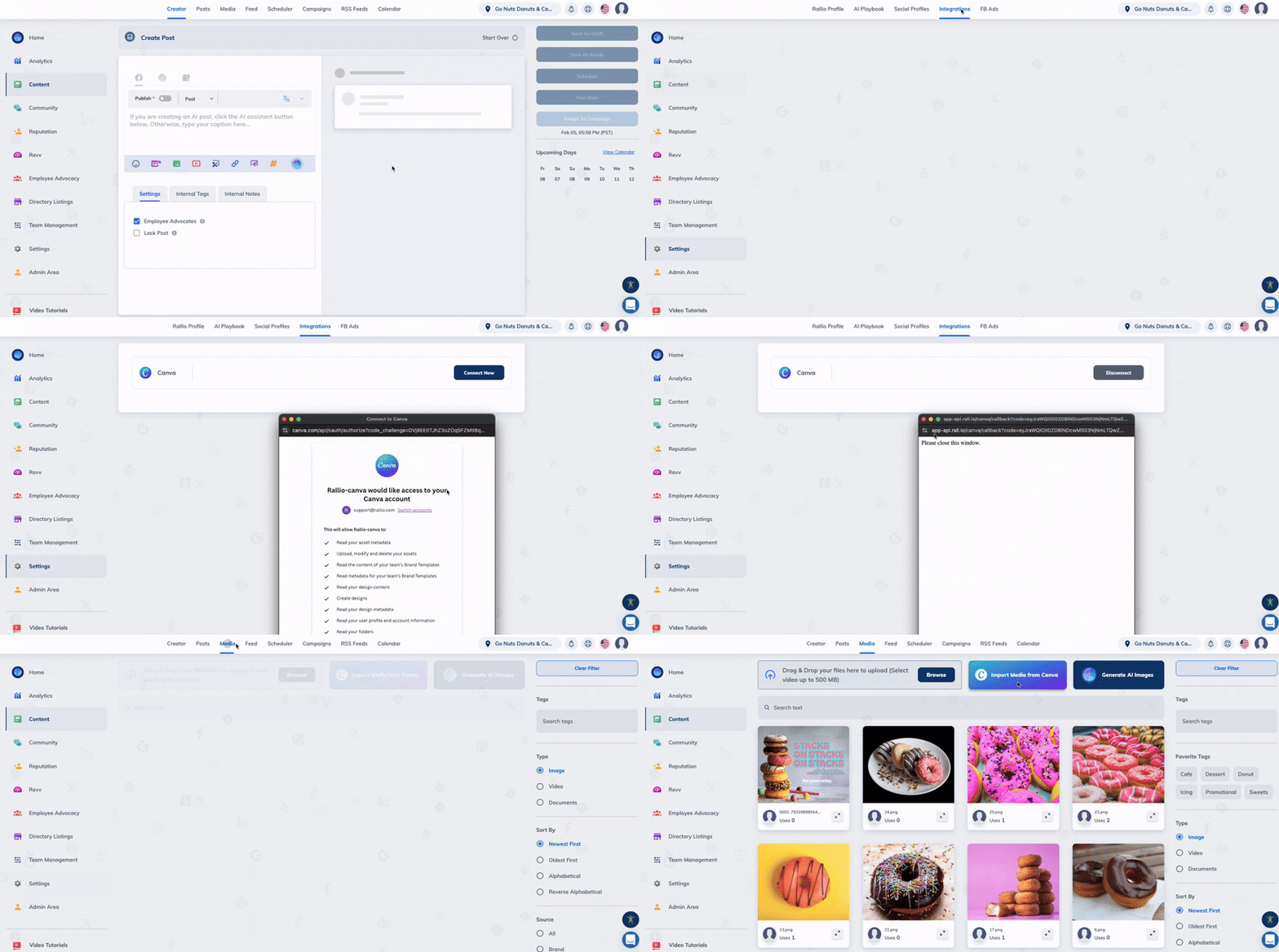
How to Connect Your Canva Account
- Go to the Settings tab in Rallio
- Navigate to the Integrations subtab
- Select Canva and connect your account
Once connected, you’re ready to move assets between platforms.
How to Import Canva Designs into Rallio
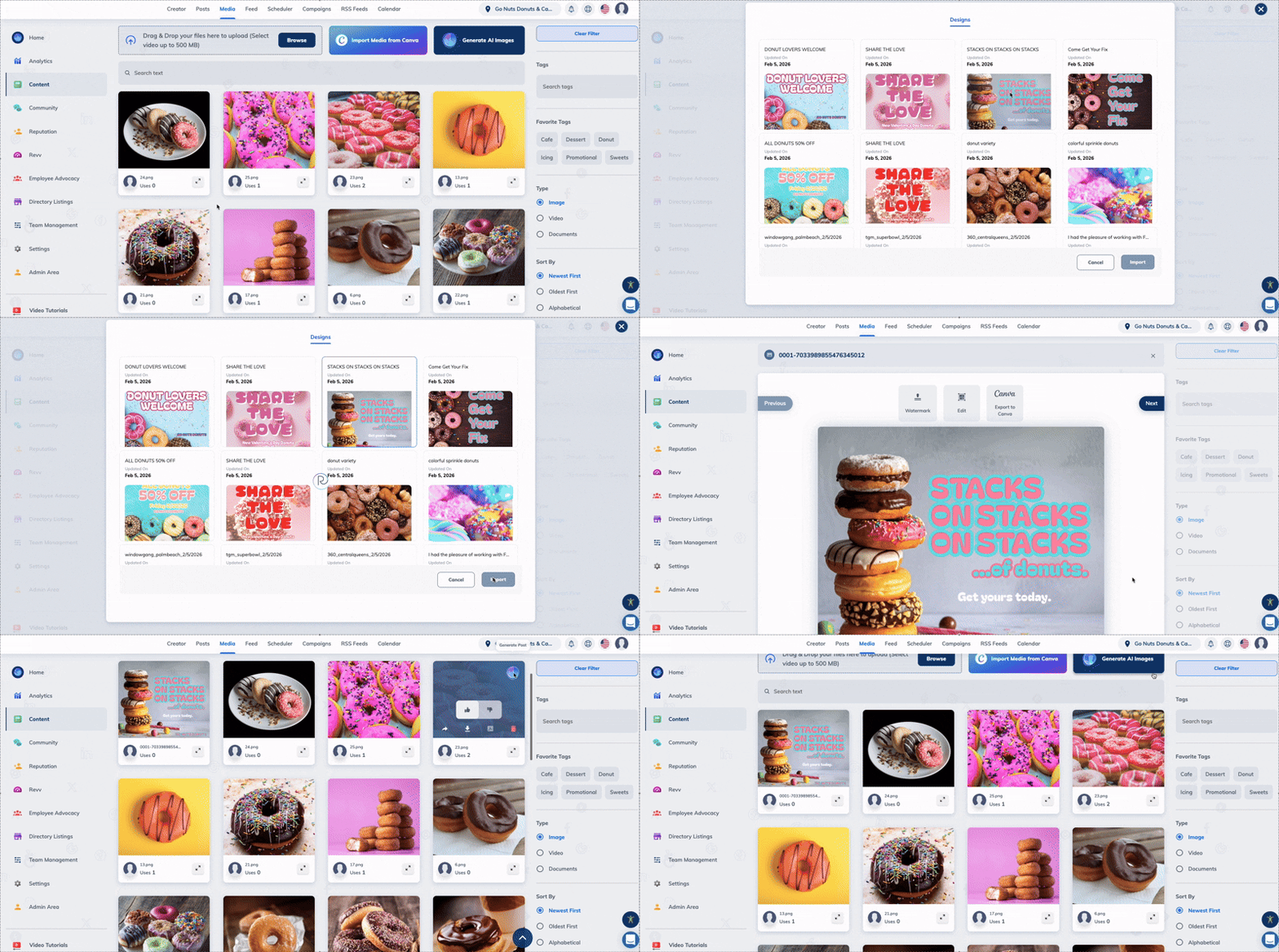
- Open your Media Library within the Content tab in Rallio
- Click the Import Media from Canva button at the top of the page
Your most recent Canva designs will appear, automatically sorted by creation date (newest to oldest), making it easy to select what you need.
How to Export Rallio Media to Canva
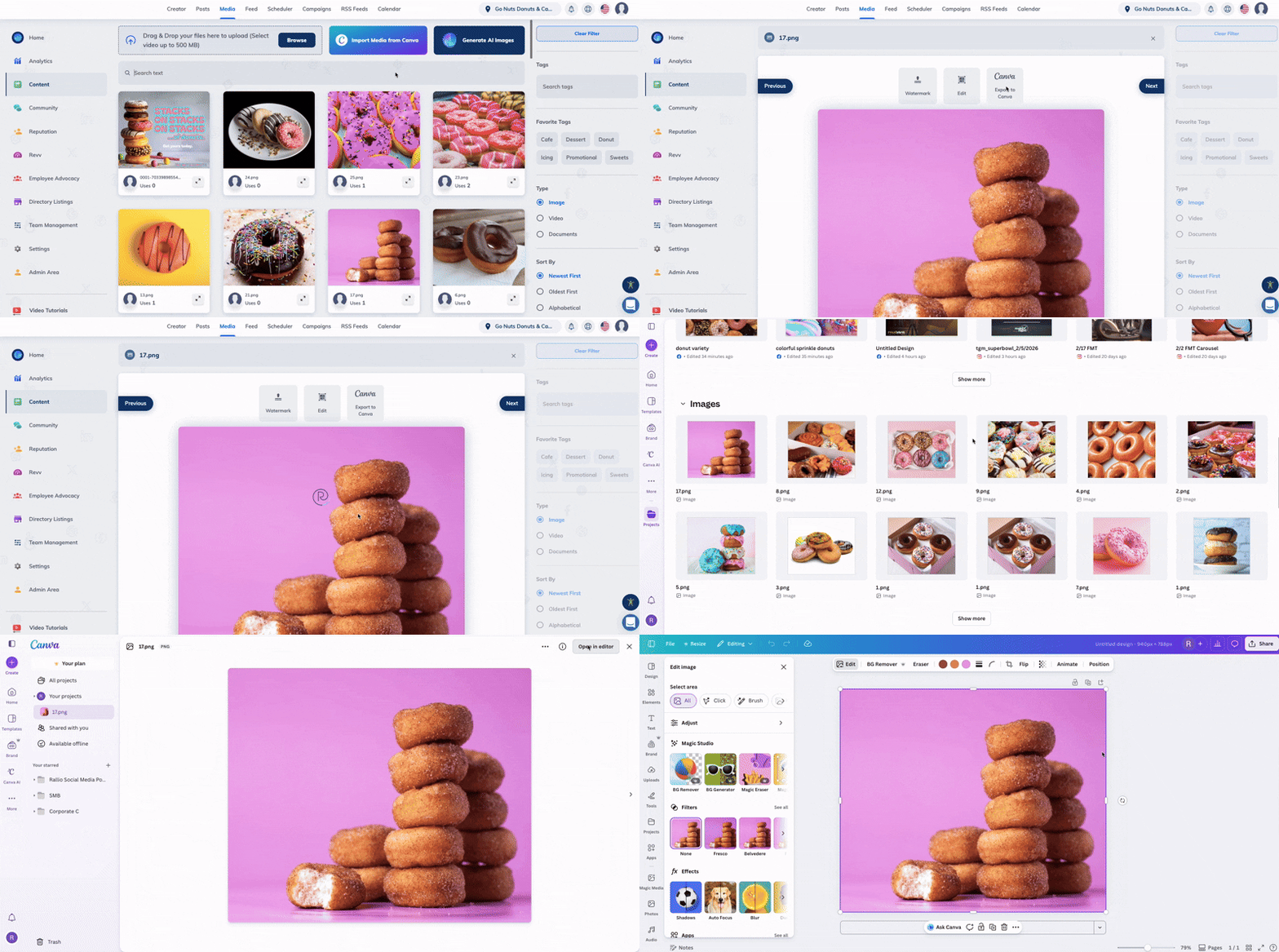
- Click into any image in your Rallio Media Library
- Select Export to Canva
- In your Canva account, navigate to the Projects tab and scroll down to Images—you will find your exported media there
From there, you can continue editing, resizing, or repurposing the asset directly in Canva.
A Better Design-to-Publishing Workflow
This new Canva integration is designed to remove friction from your content creation process. By keeping your design and publishing tools connected, Rallio helps teams move faster, stay organized, and focus more on strategy — not file management.
If you haven’t connected your Canva account yet, head to your Integrations settings and give it a try. Be sure to keep an eye out, more updates coming soon.
Rallio | Powered by Ignite Visibility is a powerful SaaS platform designed to help multi-location and franchise brands streamline their social media, online reputation, and directory listings management. With AI-driven content creation, scheduling, and analytics, Rallio ensures brand consistency while allowing localized engagement. The platform also features employee advocacy tools, review generation, and seamless integration with social ecosystems, making it the ideal solution for brands looking to optimize their digital presence across multiple locations.